February 12, 2026 | By: PhotoBiz Knowledge Base
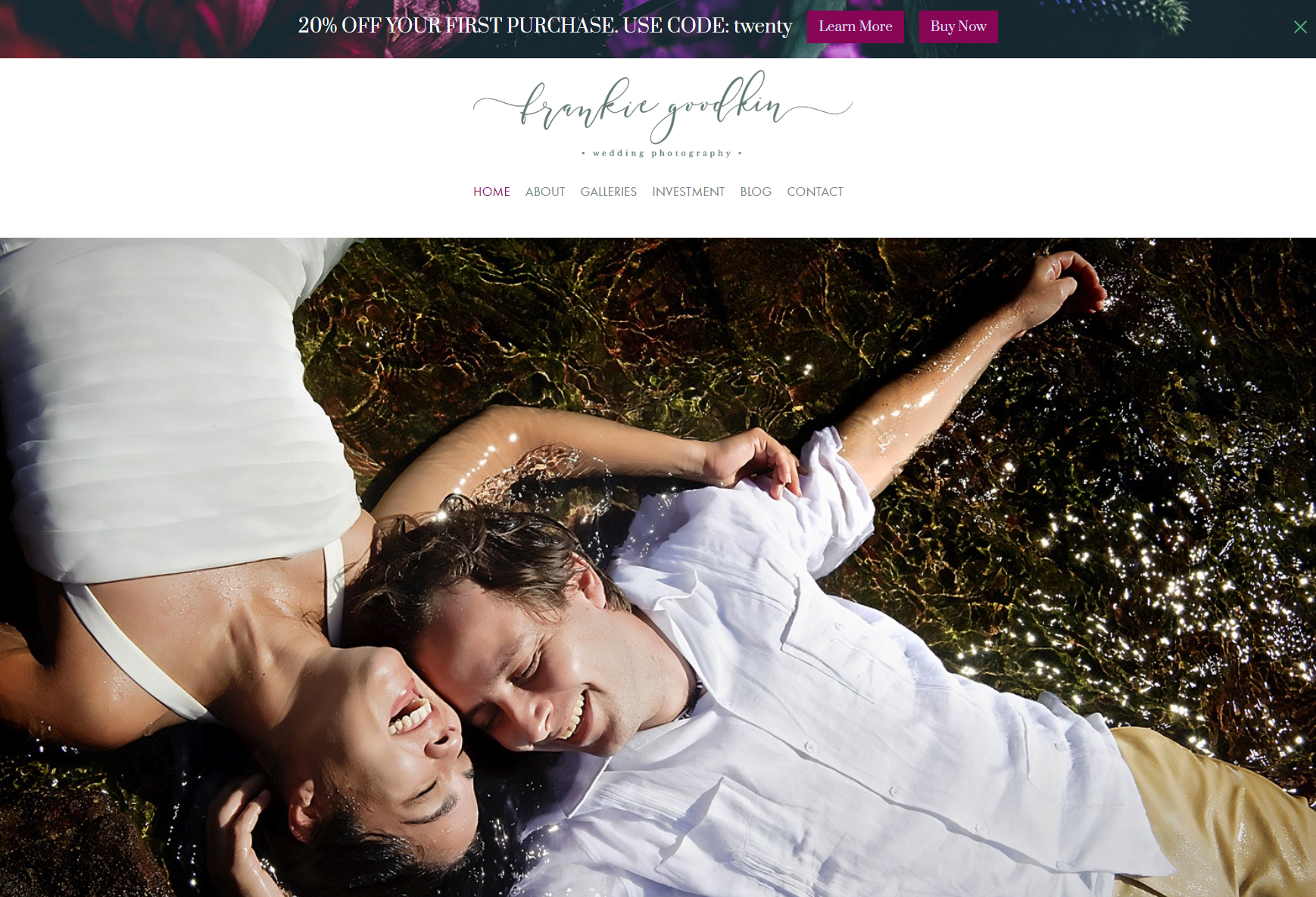
Promo Bars allow you to highlight announcements, promotions, deadlines, or important updates across your website and Client Galleries. You can add up to 250 characters of text, include one or two buttons, and fully customize the background, fonts, and colors.
Promo Bars can display at the top or bottom of a page. This guide walks you through how to create, customize, and publish a Promo Bar in your PhotoBiz account.
Log into your PhotoBiz account and click on MARKETING in the left-side menu.
At the top-center of your Marketing control panel, click on the POP UP BUILDER option.
Click NEW POP UP. The right-side menu will open and display available layout options.
Promo Bars are located at the top of the Pop Up layouts. There are three Promo Bar layout options to choose from. Click SELECT on the layout you want to use.
After selecting your layout, click the EDIT button in the upper right corner of the preview to begin customizing your Promo Bar.
The right-side menu will open, allowing you to configure your Promo Bar settings.
In the Text tab, you can:
Click Save Changes to update your text.
You can add up to two buttons to your Promo Bar.
For each button:
If you don't want to have buttons or want to delete buttons, simply leave these fields blank.
Click Save Changes to update your buttons.
Choose the location of your Promo Bar:
Click Save Changes to apply your location setting.
Customize your Promo Bar’s:
Content Background
Click Save Changes to apply your color selections. You can preview updates at the top of the screen.
Select a font from the font library by clicking the Promo Bar Text section.
If you prefer not to use a solid color, you can:
Click Save Changes after selecting your background.
Click the Settings button to control where and how your Promo Bar appears.
The right-side menu will open.
Rename your Promo Bar to help you identify it in your control panel. This name is only visible to you.
Choose where your Promo Bar appears on your website:
Choose where your Promo Bar appears in Client Galleries:
Control how often visitors see your Promo Bar after closing it:
Important: Frequency is controlled per device and browser. If a visitor switches devices or browsers, or clears cookies and cache, the Promo Bar may appear again.
Click Save Changes to apply your settings.
Click PUBLISH in the upper-right corner of the preview.
Choose Draft or Publish status.
Select your Publish On date and optional Expiration Date, then confirm to make your Promo Bar live.
Once published, your Promo Bar will display based on the location and frequency settings you configured.
If a Promo Bar is set to display on all pages and a visitor does not close it, it will follow them from page to page until closed.
If multiple Promo Bars are published in the same location on the same page, the most recently published one will load last and appear on top.
Leave a comment
0 Comments