PhotoBiz LLC Logo
  • WELCOME
  • WEBSITE BUILDER
  • SEO
  • CLIENT GALLERIES
  • FORMS
  • SERVICES
    • WE BUILD IT FOR YOU
    • SEO GO
    • CUSTOM WEBSITE DESIGN
    • LOGO DESIGN
    • DEDICATED ACCOUNT MANAGER
    • SOCIAL MEDIA MARKETING
    • COACHING
  • GROWTH HUB
  • CONTACT
MENU

How To Print An Invoice

Apr 24 2026 | By: PhotoBiz Knowledge Base

Share

How to Print an Invoice in PhotoBiz

Overview

PhotoBiz includes built-in invoicing tools that allow you to send professional, itemized invoices and collect payments online. There may be times when you need a physical copy of an invoice for your records, bookkeeping, or to provide to a client.

In this guide, you will learn how to locate an invoice in your account and print it. By the end, you will know how to choose between the available print formats and generate a clean, printable version of your invoice.

STEP ONE

Log into your PhotoBiz account and click QUOTES & INVOICES in the left-side menu.

This will open your Quotes & Invoices dashboard.

STEP TWO

At the top of the Quotes & Invoices dashboard, click INVOICES.

This section displays all invoices created in your account.

STEP THREE

Click on the INVOICE NUMBER for the invoice you want to print.

This will open the full invoice details page.

STEP FOUR

Click on the PRINT button on the upper, right corner of the Invoice.

FINAL STEP

The print drop down menu will open, choose the format you want to print:

  • Full – Includes all invoice details, including item descriptions, pricing, totals, and client information
  • Compact – A simplified version with a more condensed layout

Once selected, your invoice will open in a printable format. From here, you can print directly or save the invoice as a PDF for your records.

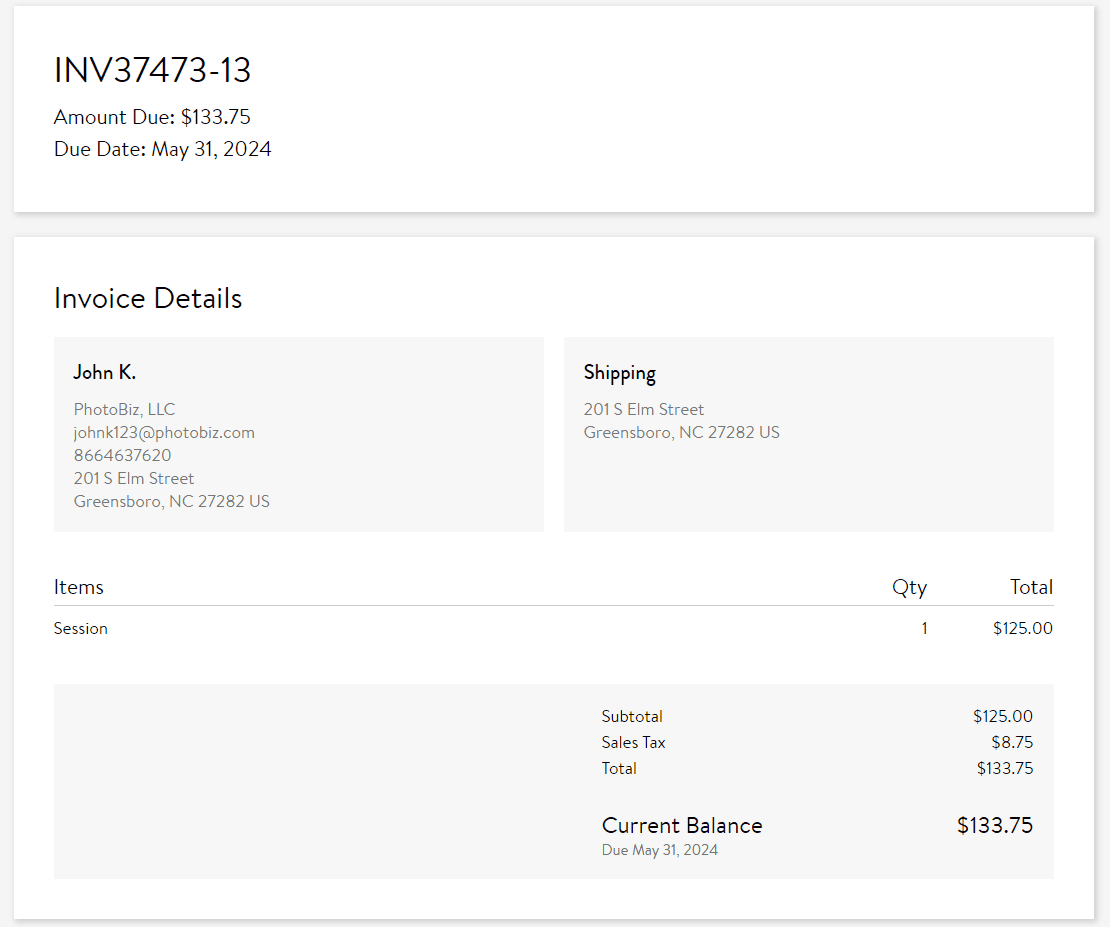
Based on which option you select for your printed version, you'll see something similar to the examples below. 

FULL PRINT EXAMPLE

COMPACT PRINT EXAMPLE

Additional Options or Helpful Notes

  • You can save a digital copy by selecting Save as PDF in your browser’s print settings
  • Printed invoices reflect the details exactly as shown in your invoice, including line items and totals
  • If you need to make changes, update the invoice before printing to ensure accuracy
  • Compact format is useful for quick reference, while Full format is better for detailed records or client documentation
Previous Post Next Post

Related Posts

How Do I Set Up A New Merchant?

April 22, 2026

How Do I Create A New Tax Line?

March 23, 2026

How do I update a Payment Status for an order?

March 24, 2026

How to Add a Payment to an Invoice

May 12, 2025

Need More Help?

CONTACT US

BUILDER

Website Builder Client Galleries Blog  

TOOLS

Ecommerce Scheduler Quotes & Invoices  

MARKETING

Email Marketing Forms Contacts SEO  

MORE

Account Settings Domain & Email Files PhotoBiz Growth Hub Blog Go To PhotoBiz.com  
Copyright © 2004 – 2026 PhotoBiz, LLC All rights reserved
Crafted by PhotoBiz
PhotoBiz LLC Logo
CLOSE
  • WELCOME
  • WEBSITE BUILDER
  • SEO
  • CLIENT GALLERIES
  • FORMS
  • SERVICES
    • WE BUILD IT FOR YOU
    • SEO GO
    • CUSTOM WEBSITE DESIGN
    • LOGO DESIGN
    • DEDICATED ACCOUNT MANAGER
    • SOCIAL MEDIA MARKETING
    • COACHING
  • GROWTH HUB
  • CONTACT