Jul 16 2026 | By: PhotoBiz Knowledge Base
Overview
The PhotoBiz Website Builder allows you to move an existing block to another page without recreating its content or settings. You can move a block by dragging it onto another page or by using the MOVE option in the block menu.
You can also make a copy of a block before moving it. This allows you to reuse the same block on another page while keeping the original block in place.
This guide explains how to copy a block when needed, move it to another page, and choose where it appears on the destination page.

Log in to your PhotoBiz account and click WEBSITE in the left-side menu.
This opens the Website Builder, where you can manage your website pages and content blocks.
Click the page that currently contains the block you want to move or copy.
If you want to move the original block, continue to STEP FOUR or STEP FIVE.
If you want to keep the original block and use the same content on another page, click the pencil icon in the upper-right corner of the block. Click COPY in the menu that opens.
After the copy is created, use the copied block for the remaining steps. This allows the original block to stay in its current location while the duplicate is moved to another page.
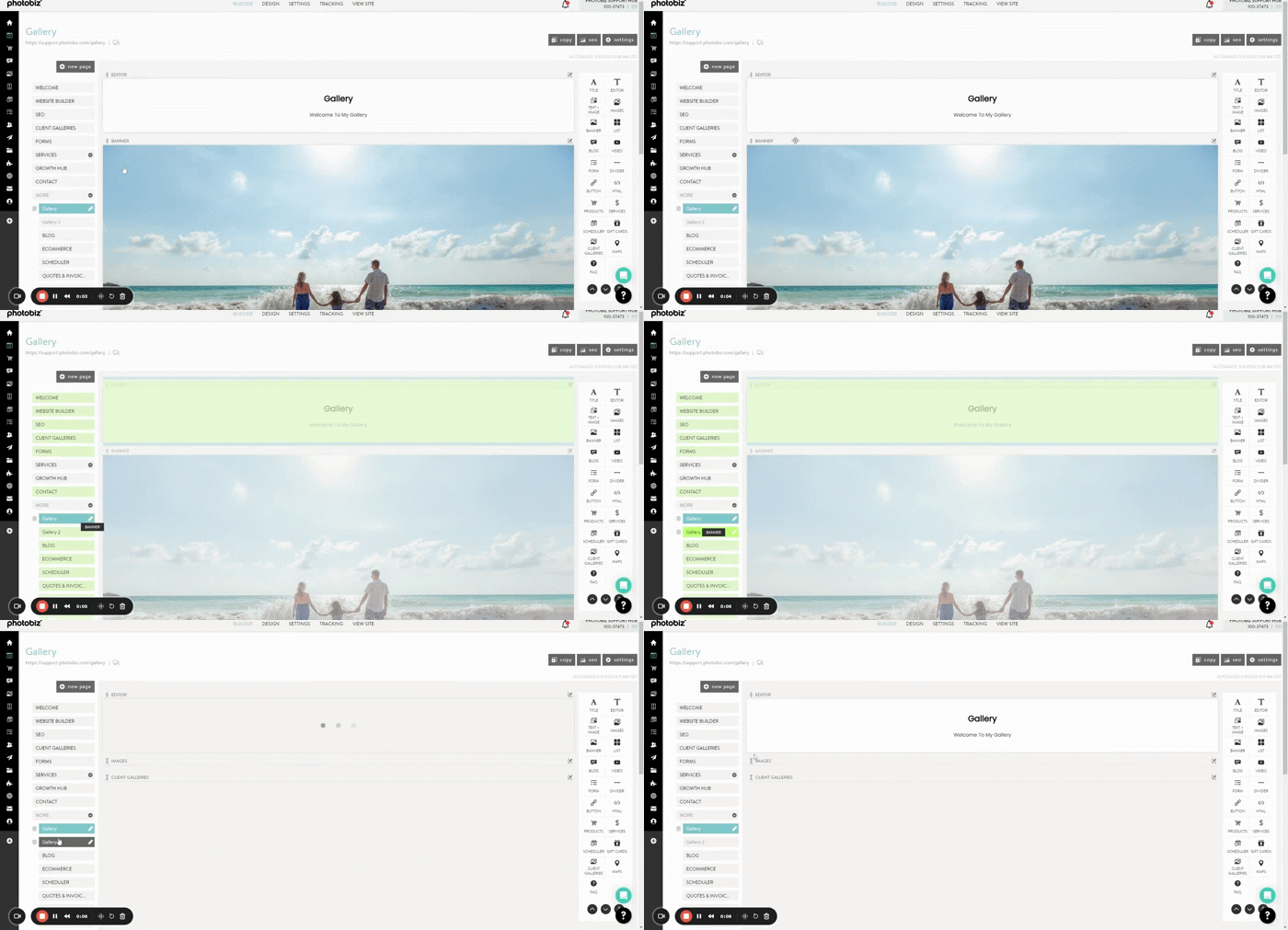
To use the drag-and-drop method, click and hold the block you want to move. Drag the block over the name of the destination page in the Website Builder menu.
Release your mouse button over the destination page. The block will be removed from its current location and added to the bottom of the selected page.
Use this method when you want to move the block quickly and plan to adjust its position after opening the destination page.
You do not need to complete STEP FIVE if you use the drag-and-drop method.
To use the MOVE option, click the pencil icon in the upper-right corner of the block. Click MOVE in the menu that opens.
Select the page where you want the block to appear. Under LOCATION, choose TOP OF PAGE or BOTTOM OF PAGE.
Click MOVE BLOCK to complete the move.
You can also select the page you are currently editing. This allows you to quickly move the block to the top or bottom of the same page.
Open the destination page and confirm that the block appears in the correct location.
A block moved with drag and drop will appear at the bottom of the destination page. Click and drag the block to another position on the page as needed.
A block moved with the MOVE option will appear at the top or bottom of the page based on the location you selected.
Your changes are automatically applied to your website. You do not need to publish the website separately.
Use the drag-and-drop method when:
Use the MOVE option when:
Moving a block removes it from its current page and places it in a new location.
Copying a block creates a duplicate so you can reuse the same content and settings. Copy the block first when you want the original version to remain on its current page.
For example, you may want to copy and move a block when:
After copying the block, you can change the text, images, buttons, or other settings without changing the original block.