
Apr 21 2026 | By: PhotoBiz Knowledge Base
Overview
You can give your clients an easy way to access their photos by helping them add their Client Gallery directly to their phone’s home screen. This creates an app-style shortcut that opens their gallery instantly, making it simple to view and share images on the go. PhotoBiz also includes an option to automatically send these instructions in your Email Invitations with PhotoBiz Client Galleries. In this guide, you will learn how clients can create their gallery app on Apple and Android devices.
Before your client begins, make sure:
Learn More: How To Use Email Invitations with PhotoBiz Client Galleries
When this option is enabled, your client will receive these instructions at the bottom of their email invitation.
Your Customer will receive their email invitation and the instructions for adding the client galleries app are included at the bottom of the email. There's an example screen shot of this below.
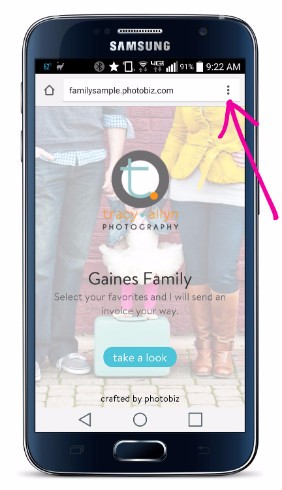
Open the client gallery link in the Chrome app and tap the menu icon at the top right of the screen (it looks like three vertical dots).
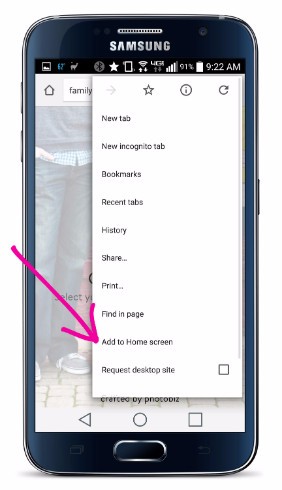
Select "Add to Home Screen" from the menu.
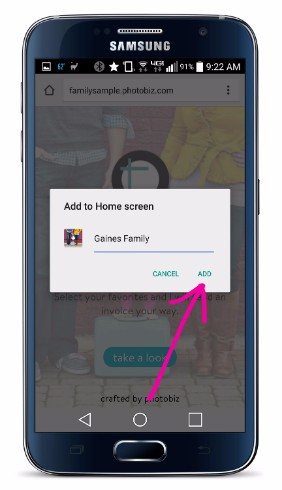
When the pop up opens, tap "Add."
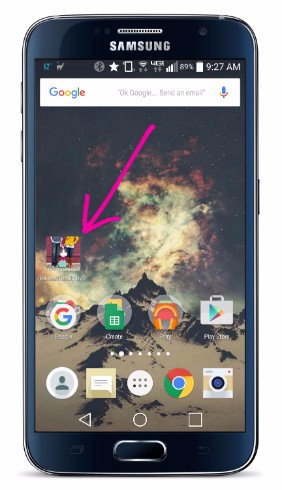
The icon with cover image will appear on the home screen.
Open the client gallery link in the Firefox app and tap the menu icon at the top right of the screen (it looks like three vertical dots).
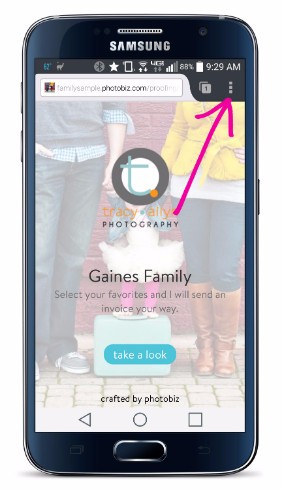
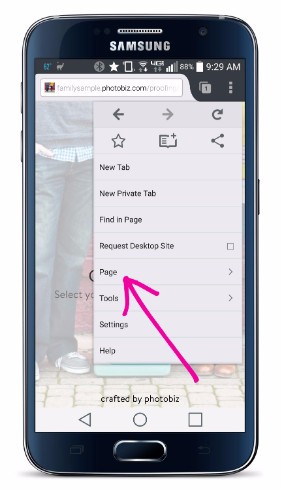
Tap "Page" within the menu.
Tap "Add to Home Screen" within the menu
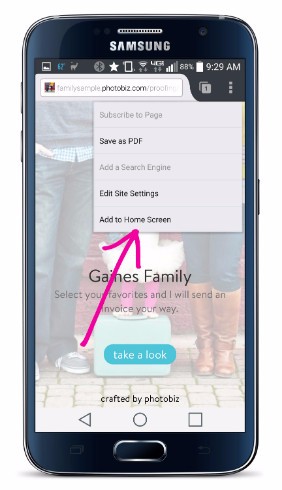
The icon with cover image will appear on the home screen.

If the Client Gallery expires, is disabled, or is deleted, the shortcut will no longer work and the images will not be accessible
The exact wording of menu options may vary slightly depending on the device and browser version

